



fd - A simple, fast and user-friendly alternative to find


fd is a fast, simple, and user-friendly tool that simply performs faster than find. It isn't meant to be a replacement for find, but rather a slightly faster alternative that is easier to use. Let us explore fd command completely in this article.
Install fd in Linux
Download the latest version of fd and install it by using the following commands if you are using a Ubuntu or Debian-based distro.
$ wget https://github.com/sharkdp/fd/releases/download/v7.3.0/fd-musl_7.3.0_amd64.deb

$ sudo dpkg -i fd-musl_7.3.0_amd64.deb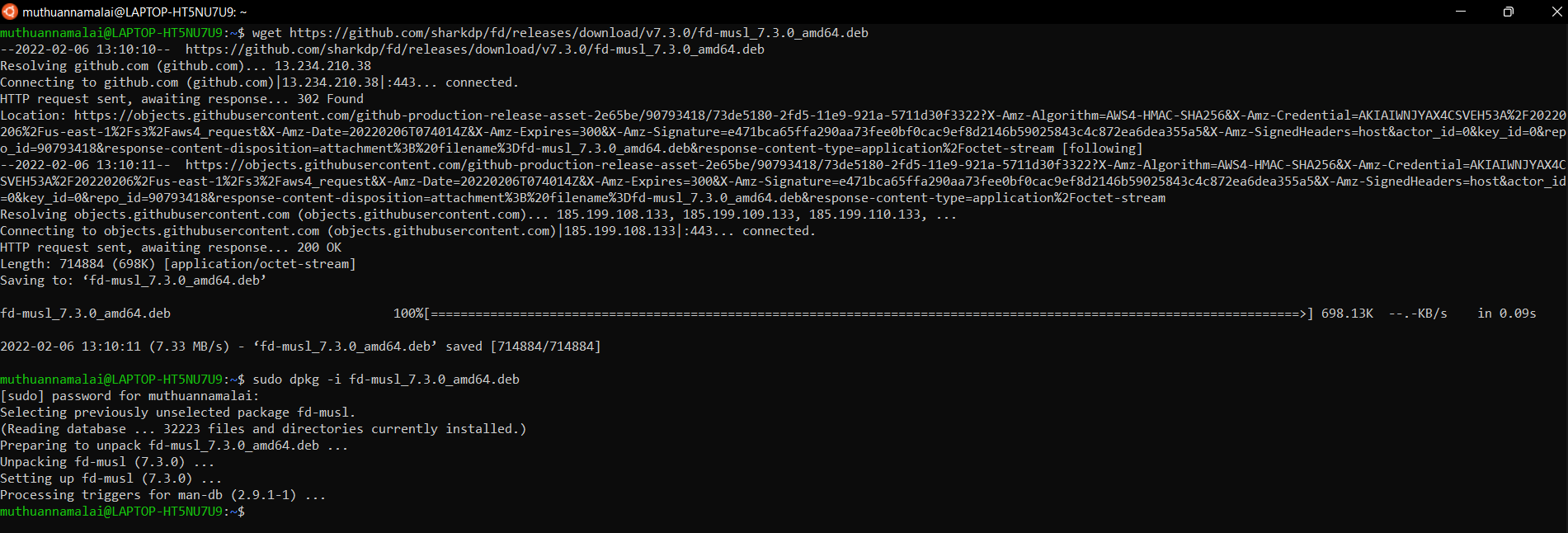
If you're using another Linux distribution, you can install fd using package manager as shown below.
// Fedora
dnf install fd-find

// Arch Linux
pacman -S fd

// Gentoo
emerge -av fd

// OpenSuse
zypper in fd
Features
By default, smart search uses case-insensitive search. However, it will use case-sensitive search if a pattern contains an uppercase symbol.
By default, it does not search hidden files and directories.
It does not examine the .gitignore file by default.
It supports regular expressions.
It highlights different types of files with different colors.
Easy to use syntax
Setting up test file
Let us create a few files in a temporary directory for our examples:
sudo mkdir -p /abc/opensource-fd/one /abc/opensource-fd/two /abc/opensource-fd/three /abc/opensource-fd/four

cd /abc/opensource-fd/

sudo touch one/test-file.txt two/demo-file.txt

sudo touch one/test-file.rtf two/demo-file.rtf

sudo touch one/test-file.pdf two/demo-file.pdf

sudo touch three/test-file.txt four/demo-file.txt

sudo touch three/test-file.rtf four/demo-file.rtf

sudo touch three/test-file.pdf four/demo-file.pdf
Let's try few commands:
fd, like find, has a wide range of applications, but let's start with a look at the options:
fd -h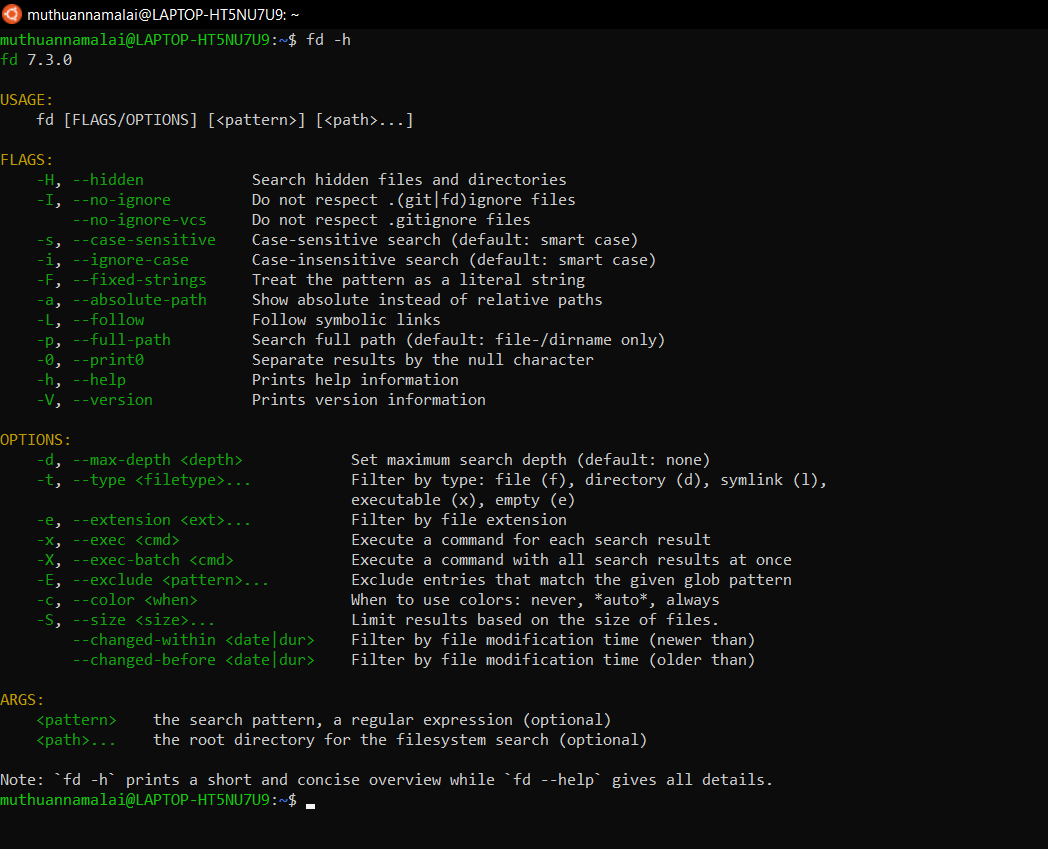
In the examples that follow, I'll make use of the test files I created earlier. We can start out by running the command without any arguments. The results will be similar to what we see by running ls -r:
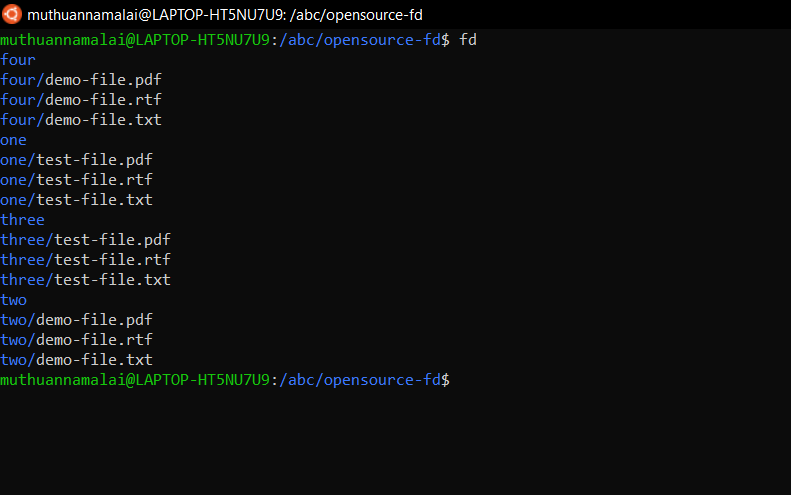
Search with an Extension
If you are looking for files with the extension txt, you can use the filtering option '-e' to do so:
$ fd -e txt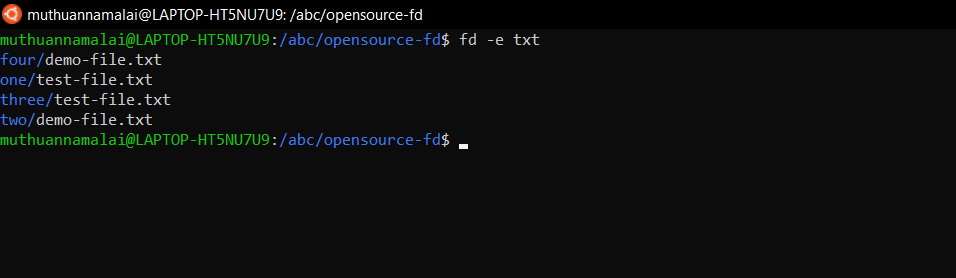
Search by pattern
Additionally, the option '-e' can be combined with a pattern like this. This command will search for files with the extension rtf that have in their name the string 'test'.
$ fd -e rtf test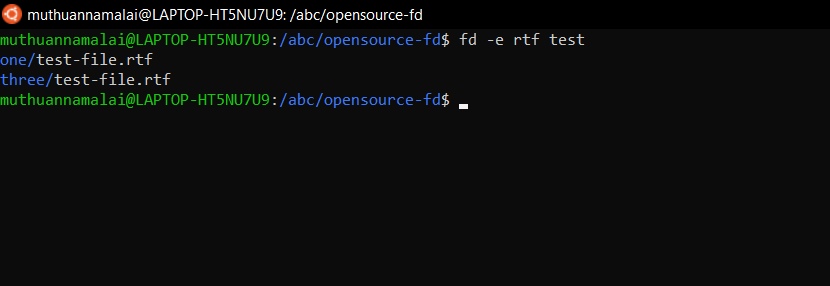
Search by Regular Expression
The search pattern is treated as a regular expression. Here, we search for entries that start with demo and end with txt.
fd '^demo.*txt$'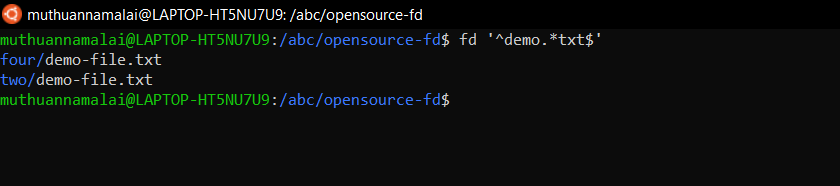
Search within a directory
If you wish to search within a particular directory, simply specify it as an argument. With this command we will look for rtf files inside the four directory.
fd rtf ./four/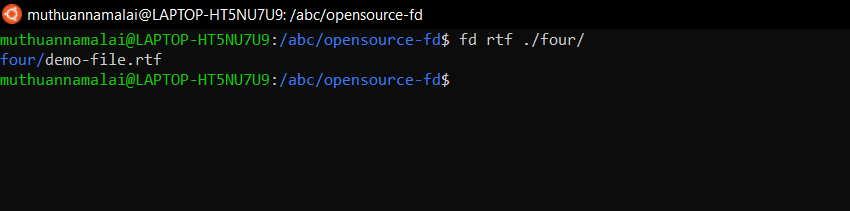
Execute a command based on the results
In the same way as find, the -x or -exec arguments will allow us to run parallel commands with the search results. In the following example, chmod is used to change the permissions of an image file.
fd -e txt -x chmod 644 {}All files with a txt extension will be found by the above command and will be modified with chmod 644.
Here are some useful explanations and examples of how to use brackets:
{} – The path of the search result will be used as a placeholder
{.} –Same as {}, except without the file extension
{/}: A placeholder whose value will be replaced by the search result's base name.
{//}: The directory that contains the discovered path.
{/.}: Just the basename without an extension
I briefly examined the fd command, which some people may find more convenient and faster to use. As we discussed earlier in this article, fd is not meant to replace find completely, but rather to enhance its capabilities and simplify its use. Fd takes up little room in your arsenal and can be very useful.